Real use cases
These are situations from a normal week on acme-api, the example project in the screenshots. Each one lists the steps in Git Good and what it saves you compared with doing it by hand.
Tidy a feature branch before review
Situation. Linus has three local commits on main: Read the database URL from ACME_DB, WIP fix db typo and Log the listening address. The WIP commit only fixes a typo in the first one. Reviewers should see two clean commits.
In Git Good
- In History, select Read the database URL from ACME_DB and press R.
- Select WIP fix db typo and press F. The plan shows fixup into 2d566e9, and the header 3 commits → 2.
- Check the diffs on the right, tick Stash working changes first if you have uncommitted work, and press Ctrl+Enter.
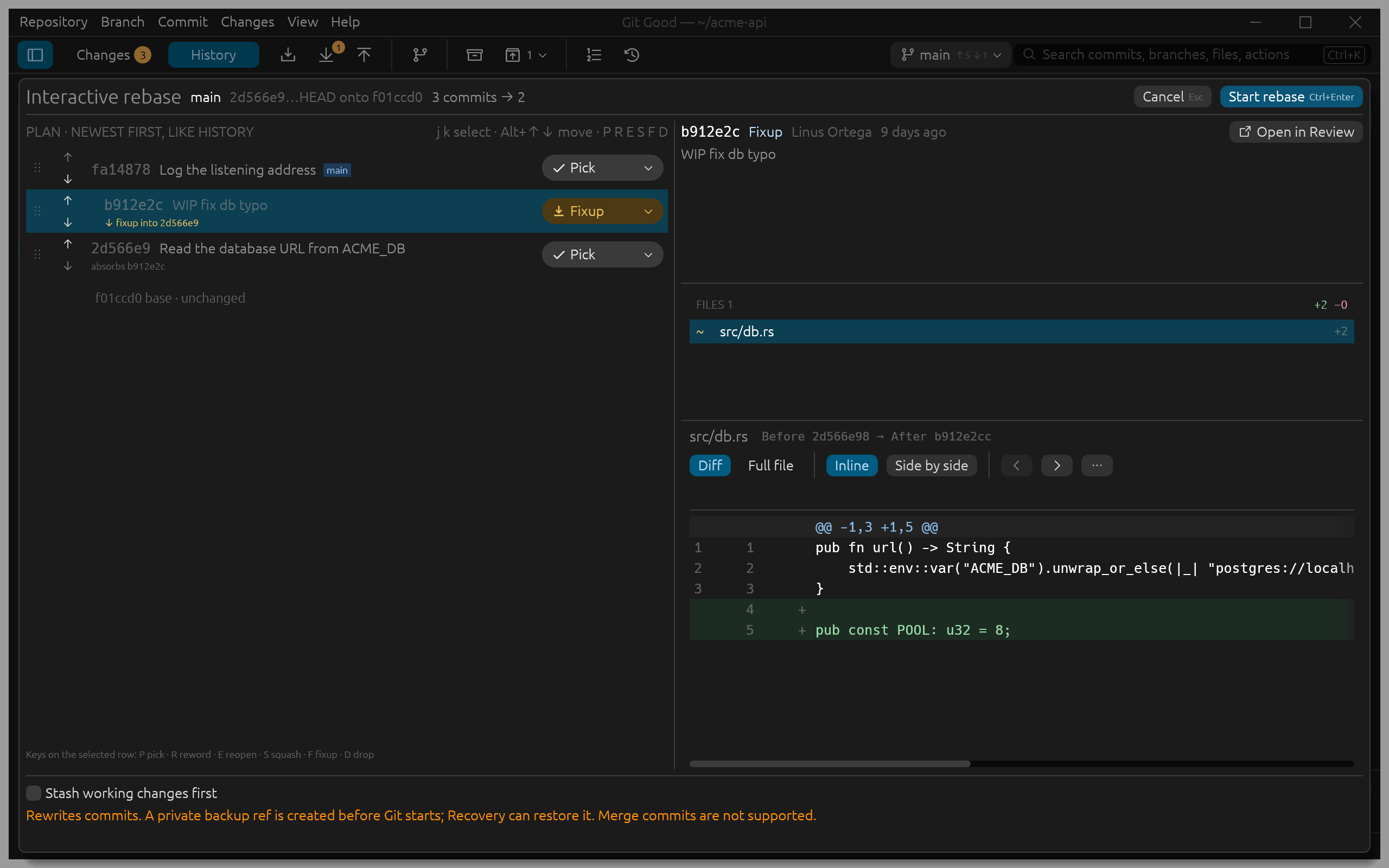
What it saves. No todo file to edit in a terminal editor, no hashes to copy, and no git reflog hunt if it goes wrong: the result count and the diffs are visible before you start, and the old branch is in Recovery. The same rewrite from a script is one command:
{"operation":"rewrite","status":"completed","applied":true,"steps":3,
 "previous":"fa148783e22720b0b77d0900fa1e105551141e13",
 "backup":"refs/gg/backup/rewrite/1793901278176003211/main",
 "conflicts":[],"warnings":[],"complete":true, "…": "…"}
Your teammate pushed first
Situation. Margaret pushed Bump serde to 1.0.214 while Ada was working. Ada's main is 5 ahead and 1 behind origin/main, so a plain push would be rejected.
In Git Good
- After a Fetch (Ctrl+Shift+F), the toolbar says so:
main ↑5 ↓1, and the Pull button shows 1. The counts come from your local refs and stay current as they change; Git Good never fetches on its own. - Press Pull (Ctrl+Shift+L). It fetches and rebases Ada's five commits onto Margaret's, the default strategy.
- Press Push (Ctrl+Shift+P).
If the rebase stops on a conflict, the band names the step: Resolve conflicts opens the conflict view, and Abort and restore returns to where you started.
What it saves. You see you are behind before you push, not after a rejection. And if a push is rejected anyway, Git Good offers Fetch and stops there: nothing is merged or rebased behind your back.
Ship part of a file
Situation. Ada is wiring list_orders to a new orders module. src/routes.rs has two hunks: the new import and the call. She also has a README change already staged and a new src/orders.rs.
In Git Good
- Click Changes (the badge says 3).
- Select
src/routes.rs. Click Stage hunk on each hunk you want, or tick single lines. - Stage
src/orders.rswith its +. - Write the message and press Ctrl+Enter.
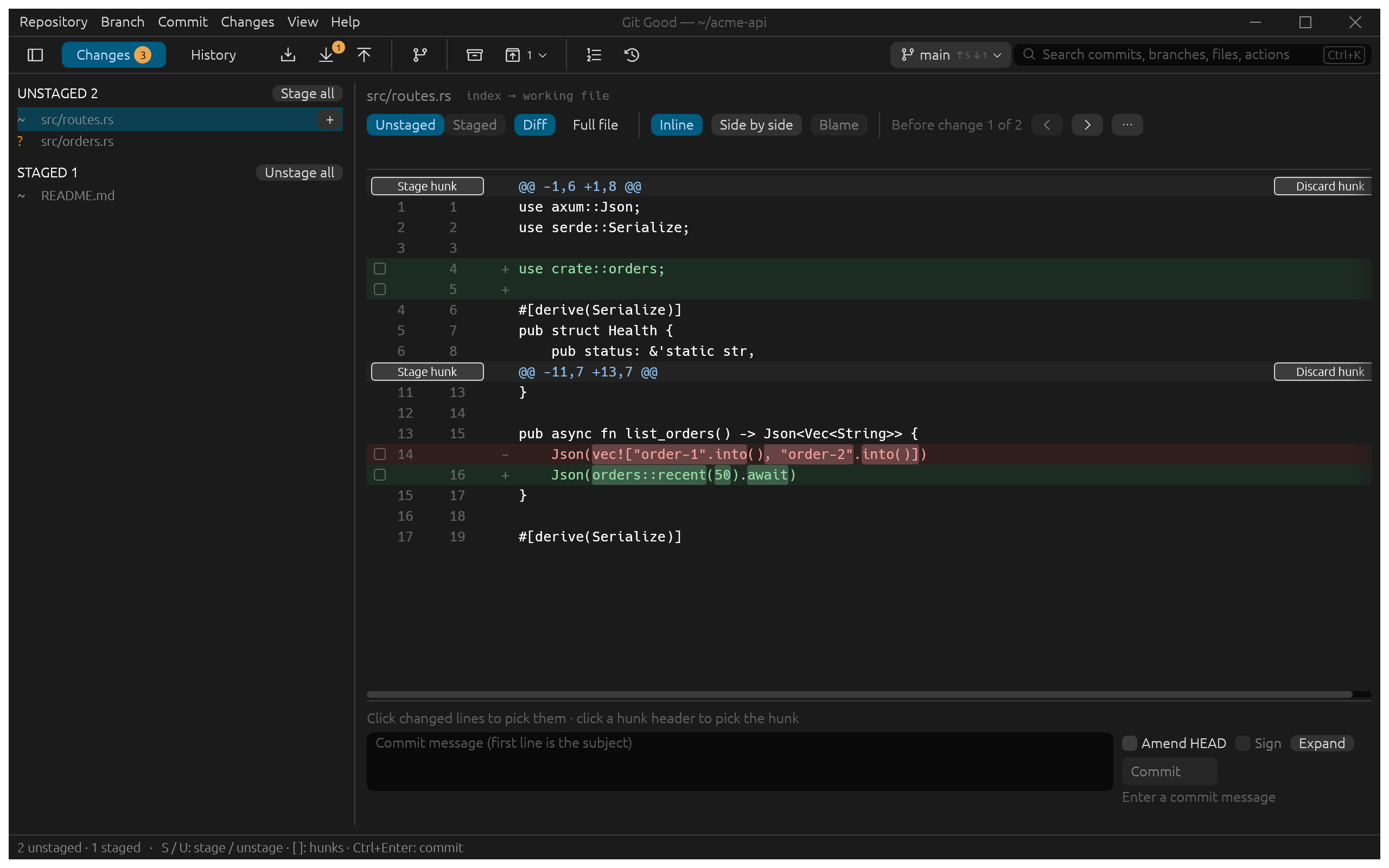
What it saves. git add -p asks about every hunk in order and cannot pick a single line inside one without editing a patch by hand. Here you see the whole file and click what belongs in the commit.
A merge conflict on the same line
Situation. main started paging the order list while feature/sorting sorted it. Merging the branch conflicts on one line of src/routes.rs.
In Git Good
- The band reads Ours is main, Theirs is feature/sorting. Click Resolve conflicts to open the conflict view.
- Read Base, Ours and Theirs side by side, and choose with 1 to 4, or open the file in your editor for a hand-made combination.
- Stage resolution (Ctrl+S), then Continue (Ctrl+Enter).
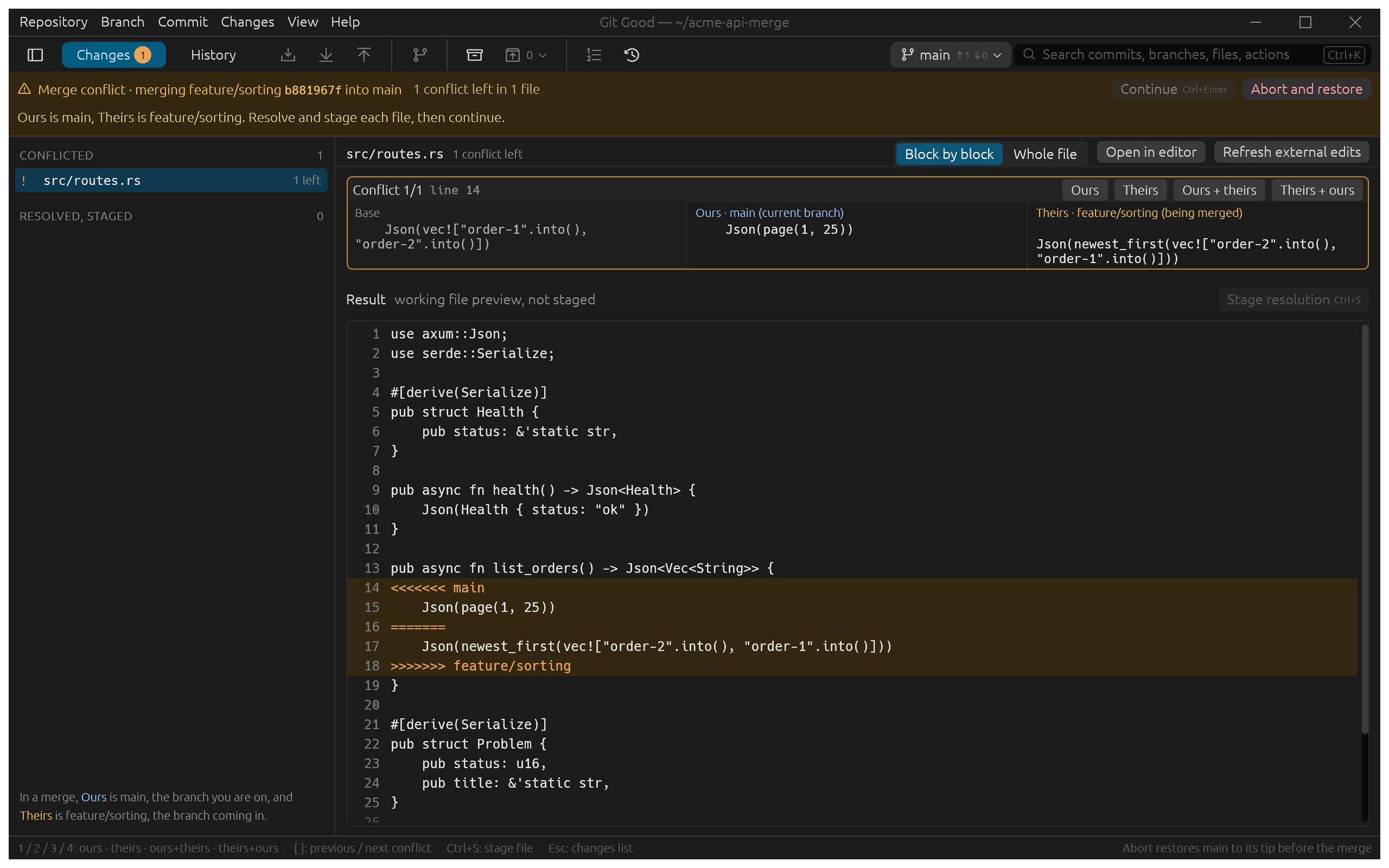
What it saves. No conflict markers to parse in your head, and no guessing which side "ours" is during a rebase. Abort and restore is always one click away.
"I rewrote the wrong branch"
Situation. After rewording a commit on feature/rate-limit, Linus realizes the old message was referenced in an issue and wants the original commits back.
In Git Good
- Open Recovery from the toolbar.
- The backup made before the rewrite is at the top, with 2 commits differ from the backup.
- Create branch here… to keep both versions, or Restore feature/rate-limit… to put the branch back.
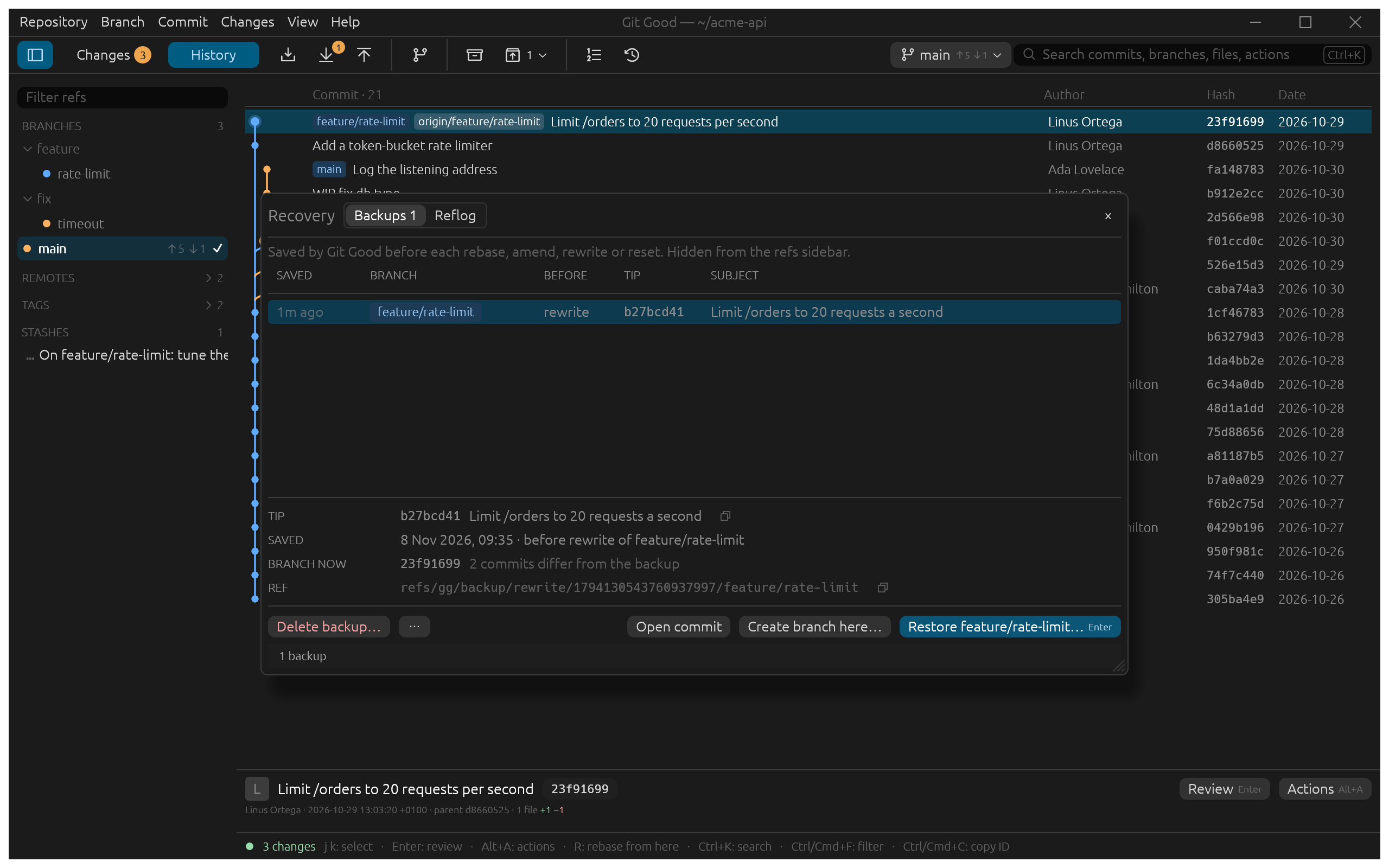
What it saves. Without it, the old tip is somewhere in git reflog feature/rate-limit, and only until the reflog expires. Git Good's backups are refs with a timestamp and the operation in their name, kept until you delete them (or for the period set in Preferences › Rebase & recovery › Keep private backups).
Context switch in the middle of work
Situation. Linus was tuning the rate limiter's burst size when an urgent fix came in.
In Git Good
- Double-click
mainin the sidebar. Changes that do not clash carry over; if Git refuses because they would be overwritten, the footer offers Stash and switch. - Fix, commit, push.
- Switch back to
feature/rate-limit, open the stash list and Pop tune the burst size.
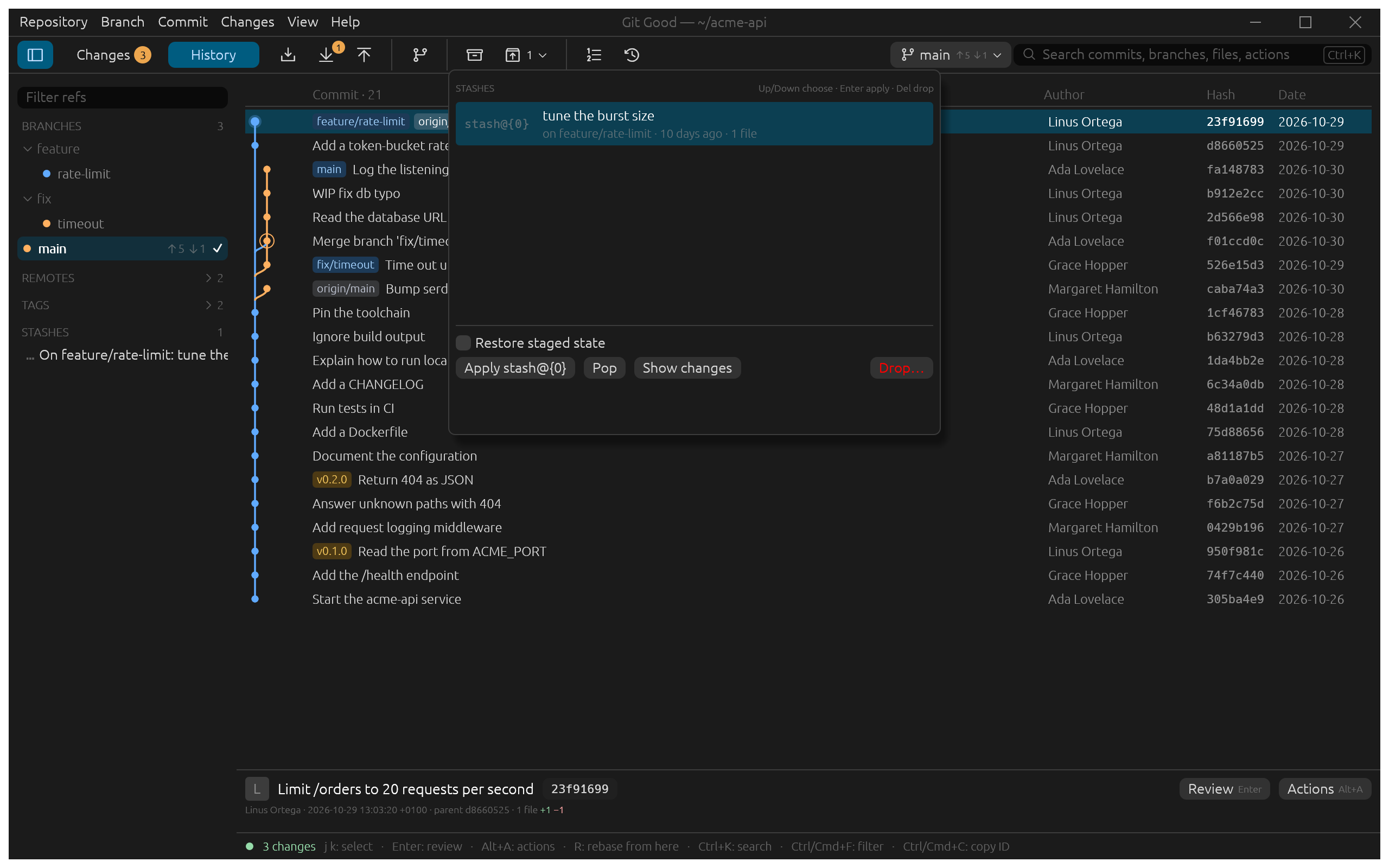
What it saves. One dialog instead of git stash push -m …, git switch, git switch -, git stash list and git stash pop stash@{n}, and the stash says which branch it came from.
Large repositories
Situation. A monorepo with 100,000 commits and 10,000 branches.
In Git Good. History shows its first rows in about 150 ms and keeps scrolling smoothly while it loads the rest in under 2 s, in about 70 MiB. The refs sidebar with 10,000 branches costs about half a millisecond per frame. See Performance for how these are measured.