Branches, fetch, pull and push
Where you stand
The current branch button in the toolbar reads main ↑5 ↓1: five local commits to push and one remote commit to pull. The Pull button carries the same 1.
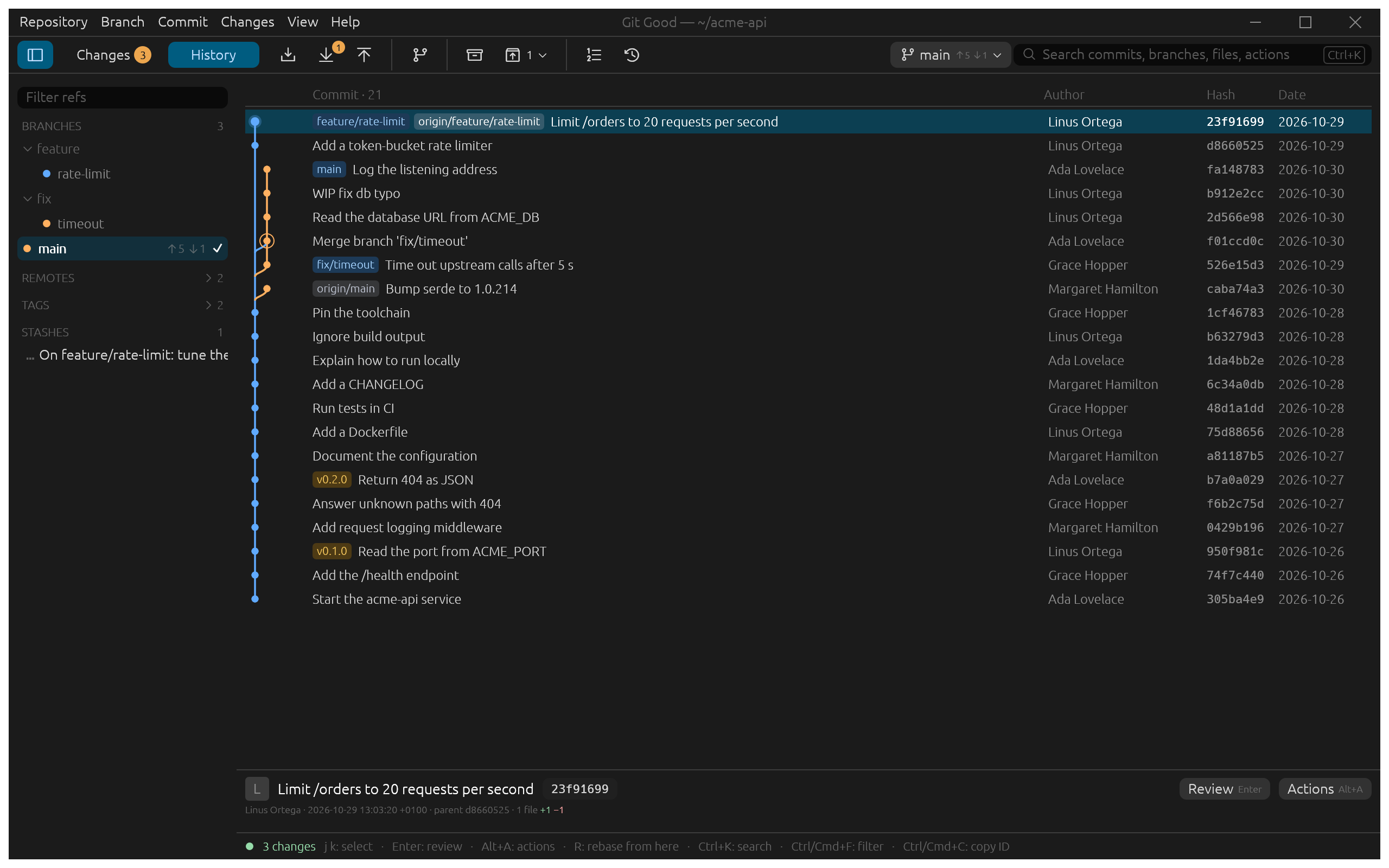
Switch and create branches
- Click the current branch button (or Ctrl+Shift+B) to open the switcher; type to filter and press Enter.
- Double-click a branch in the sidebar or a pill in History to switch to it. A remote branch switches to its local branch, creating one that tracks it if needed.
- New branch (Ctrl+B) creates a branch at HEAD and can switch to it; a branch's context menu in the sidebar creates one at that ref.
- Rename… (F2) renames the current branch; Delete… (Del) asks which other branch to delete.
If your working changes would be overwritten, the switch stops before changing anything and the footer offers Stash and switch: the stash is kept, so you can bring the changes back on either branch.
Fetch, pull and push
| Button | Key | Does |
|---|---|---|
| Fetch | Ctrl+Shift+F | Updates remote branches. Your branches and files are not touched. |
| Pull | Ctrl+Shift+L | Fetches and integrates the upstream: rebase by default; merge or fast-forward only in Preferences › Rebase & recovery. |
| Push | Ctrl+Shift+P | Pushes the current branch, setting its upstream on the first push. |
Progress shows in the footer, and a long transfer can be cancelled. A rejected push explains why and offers Fetch, so you can look at the new commits before integrating them. Git Good never fetches, merges or rebases on its own.
Push with force-with-lease… is a separate command in the Repository menu. It names the branch, the remote and the commit it expects there, and fails without changing anything if the remote moved. A plain force push is never offered.
Credentials come from your Git setup: credential helpers, SSH agents and ~/.ssh/config.